The QR Code That Finds Their Table Also Collects Their Photos
MyGuestWork gives couples one QR code for their wedding: guests scan it to find their table, then tap Photos to upload the photos and videos they take, with no app or login. Guest photo uploads are on Premium and Event Bundles.
Keep the photos to yourselves or open a shared gallery, and download everything as a ZIP after the wedding.
Premium Included on Premium and Event Bundles. Compare plans
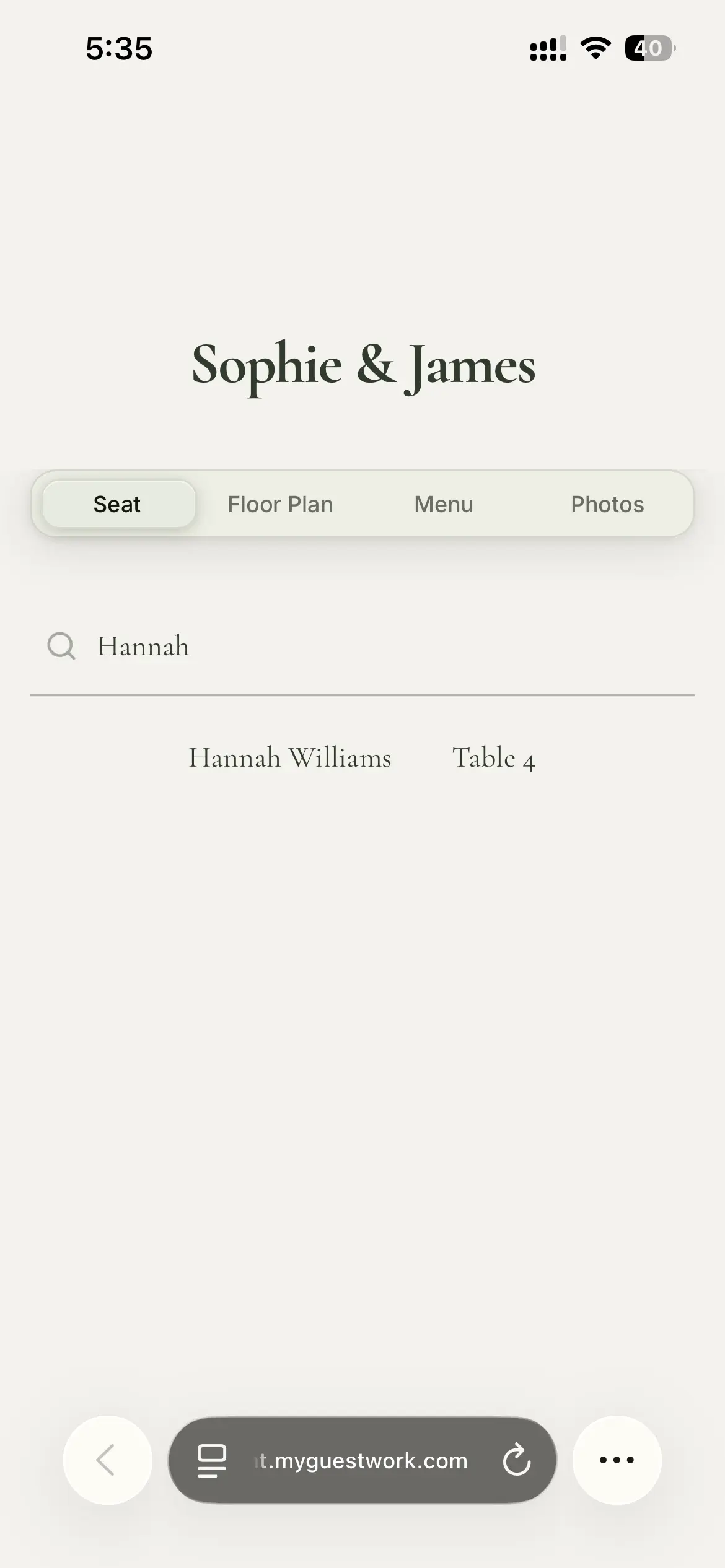
Scan, then find your table
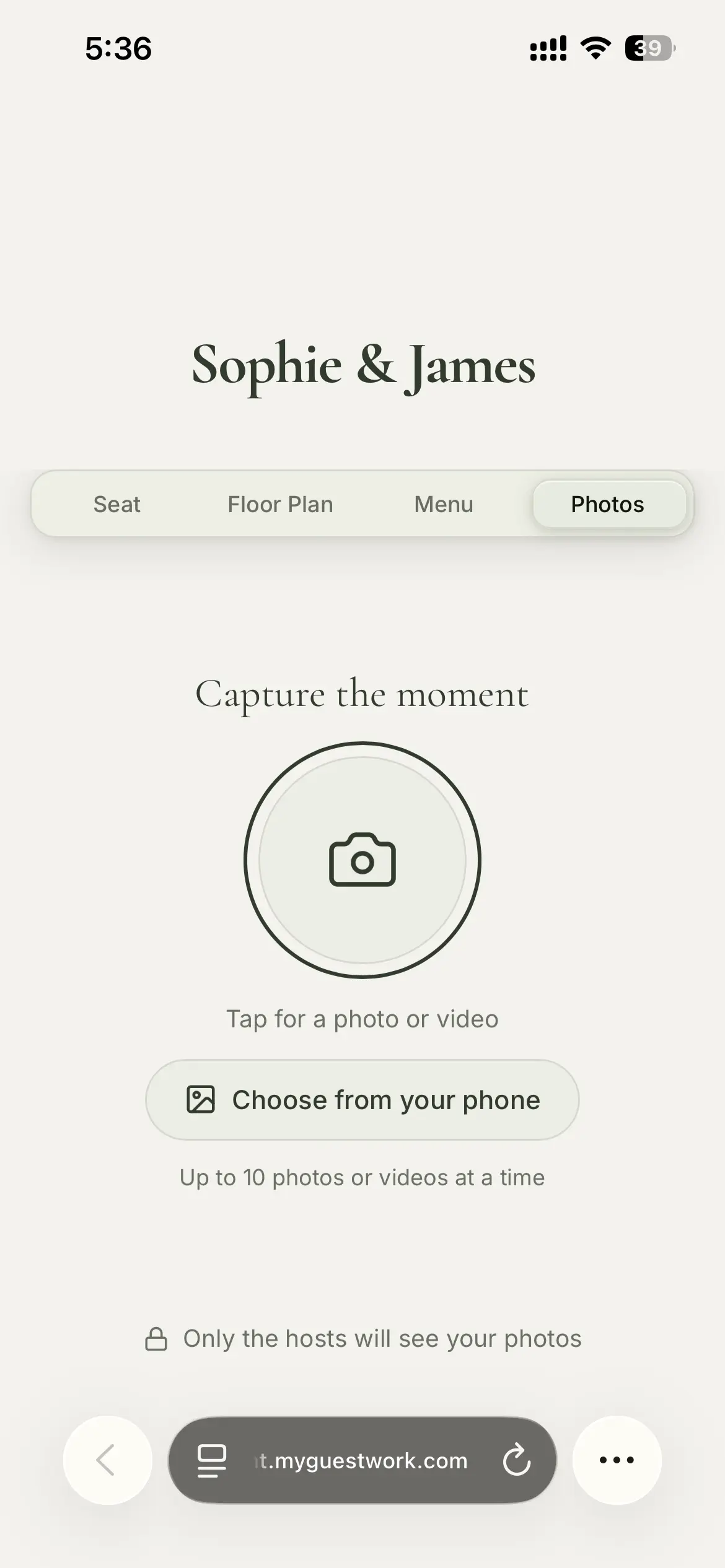
Same page, Photos tab
Why use the seating QR code for wedding photos
Guests scan your seating QR code to find their table, so the page is already open on their phone. A separate photo code means one more sign to notice and one more scan. With MyGuestWork the upload is a tab on the page they already opened, one tap away for the rest of the night.
The page is the same live site as your guest photo sharing and your wedding table finder, in your colours and fonts. Guests use their phone's browser, with nothing to install and no account to create, which suits older relatives as much as anyone.
How a QR code for wedding photos works
-
Check your photo settings
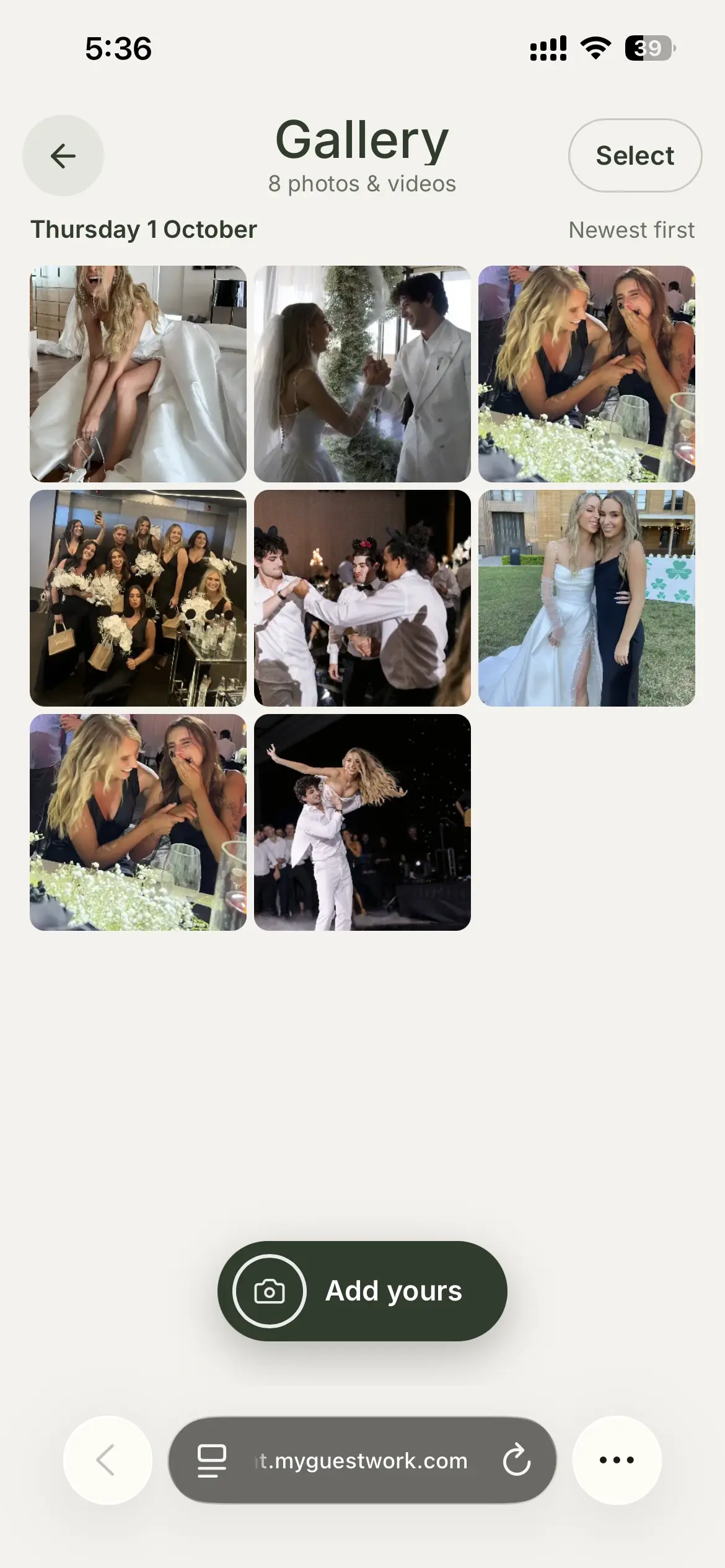
Guest uploads are on by default on Premium and Event Bundles. Decide whether guests can choose photos from their camera roll, and whether they can see each other's photos in a shared gallery.
-
Put one QR code on your signs
Print the QR code for your live site on your welcome sign and your table cards. It is the code guests scan to find their table, so there is no second code to explain.
-
Guests open the Photos tab
Guests tap the camera button to take a photo or video, or choose from their phone, then send. They can send up to 10 at a time.
-
Download the lot
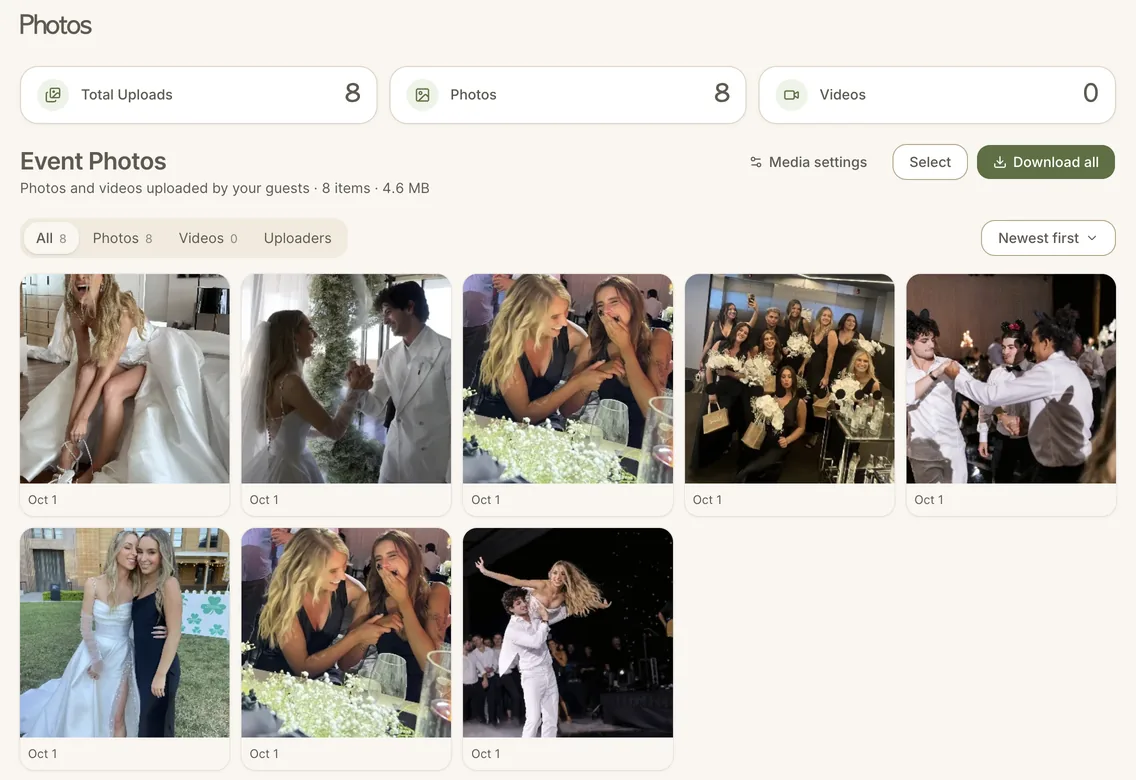
Every upload lands on your Event Photos page. After the wedding, download everything as a ZIP.
Where to put the QR code at your wedding
Put it on the welcome sign by the entrance, where guests already look for their table, with a line such as "Scan to find your table and share your photos". Repeat it on a small card on each table, so guests can find it again after dinner without walking back to the door.
Download the code as a PNG, or as an SVG that prints cleanly at any size. A mention from your MC after the speeches is a good reminder, because that is when the phones come out for the first dance.
The code keeps working after the wedding. Guests can add photos the next morning, or from the trip home, for as long as you leave uploads on.
What wedding guests can upload
Guests can send photos up to 25 MB each and videos up to 100 MB each, in MP4, MOV or WebM. They can send up to 10 at a time, and your wedding holds up to 2,000 photos and videos in total.
Photos are saved at up to 3840 pixels on the longest side, which keeps them sharp enough for prints and albums, and location data is removed.
Choosing from the camera roll is on by default. Turn it off and the Photos tab offers the camera only, so guests share what they take at the wedding rather than older photos.
A private wedding photo album, or a shared gallery
The shared gallery is off by default, so every photo comes to the two of you first. Guests see a note on the Photos tab that only the hosts will see their photos.
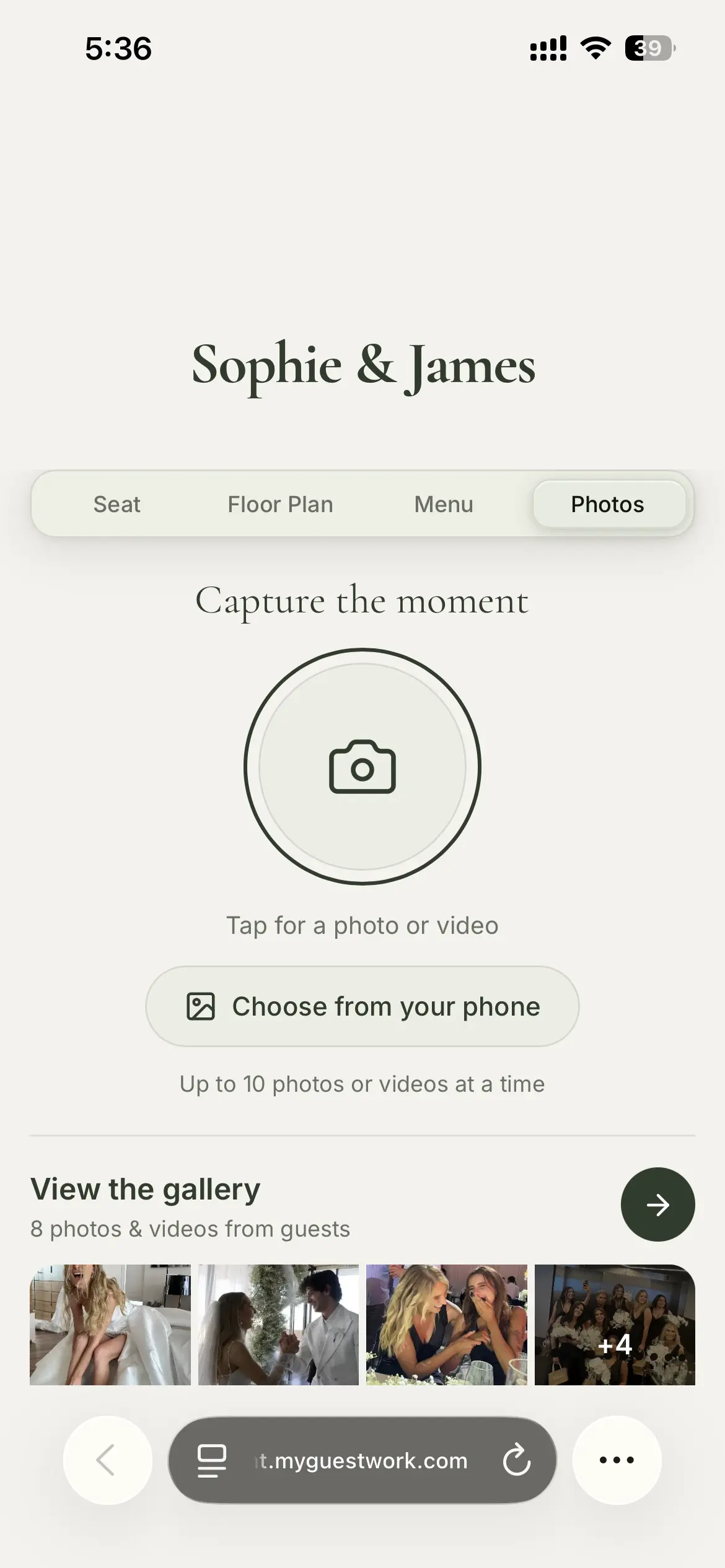
Turn the gallery on and guests can browse everyone's photos and videos from the same tab, during the wedding or afterwards. Guests never see who uploaded what.
Downloading your wedding photos and videos
Every upload lands on your Event Photos page. Download them all as a ZIP when the wedding is over, or delete up to 100 at a time.
On a wedding weekend, or a wedding with a mehendi, sangeet and reception, every day's uploads go into one gallery.
What the wedding photo QR code does not do
Worth knowing before the day.
-
No approval step
Uploads are saved as soon as guests send them. If the shared gallery is on, other guests see them straight away, so keep it off until you have looked through.
-
No upload emails
You are not emailed when someone uploads. Your Event Photos page shows everything guests have shared.
-
Not on Free or Pro
The Photos tab is on Premium and Event Bundles. Free and Pro events have the seating, without guest uploads.
Wedding photo QR code questions
Yes. The QR code opens your live site, where guests find their table, and the Photos tab on the same site is where they upload photos and videos.
Yes. Videos can be up to 100 MB each, in MP4, MOV or WebM, and photos up to 25 MB each.
Up to 2,000 photos and videos per event, with up to 10 in each upload.
No, there is no approval step. Keep the shared gallery off, which is the default, and only you see the uploads, then delete anything you do not want before you turn the gallery on.
No, there are no upload emails. Open your Event Photos page to see everything guests have shared.
One gallery. On an event with several days, every day's photos and videos go into the same gallery.
Premium and Event Bundles. Free and Pro events do not have the Photos tab.
More questions? Contact us
Collect your guests' wedding photos
One QR code for their table and their photos, with uploads on Premium and Event Bundles.