One-day event
Sophie & James
Find your table, then look at the floor plan, the menu and the Photos tab.
Open the live site
Put the order of the day, a map to the venue, the menu and the floor plan on the same page guests open from your QR code. The menu and floor plan are on Pro, and the schedule, map and your own sections are on Premium and Event Bundles.
Pro and Premium Menu and floor plan on Pro. Schedule, map and your own sections on Premium and Event Bundles.
Sophie & James
Sophie & James
Schedule
The Sophie & James demo event, with example sections.
Premium In Content, add a section, name it, pick one of 150 icons and fill it in. For a map, type the address and press Find on map. Add up to 18 of your own on each day, drag them into order and switch off any that are not ready. Changes go live after a moment.
Guest Info
5 sections · drag to reorderEverything guests can open. Floor Plan and Menu are built-in; drag to reorder and add custom sections below.
Show guests where to go, with directions and a one-tap link to open maps.
Menu
3 files
Rename in Site Design
Floor Plan
1 file
Rename in Site Design
Changes save automatically and go live after a moment.
All changes savedPro and Premium Add them as images. A menu that runs over two pages goes in as two images. JPEG, PNG or WebP, up to 4 MB each, with up to ten of each and 50 MB in total per event.
With no sections of your own, each gets its own tab next to the seat search. Guests swipe between pages, and tap to open one full screen, then pinch or double-tap to zoom.
Rename them to suit your event, such as Drinks or Venue Map, in your live site design settings. On Premium and Event Bundles you can also hide either one without deleting it.
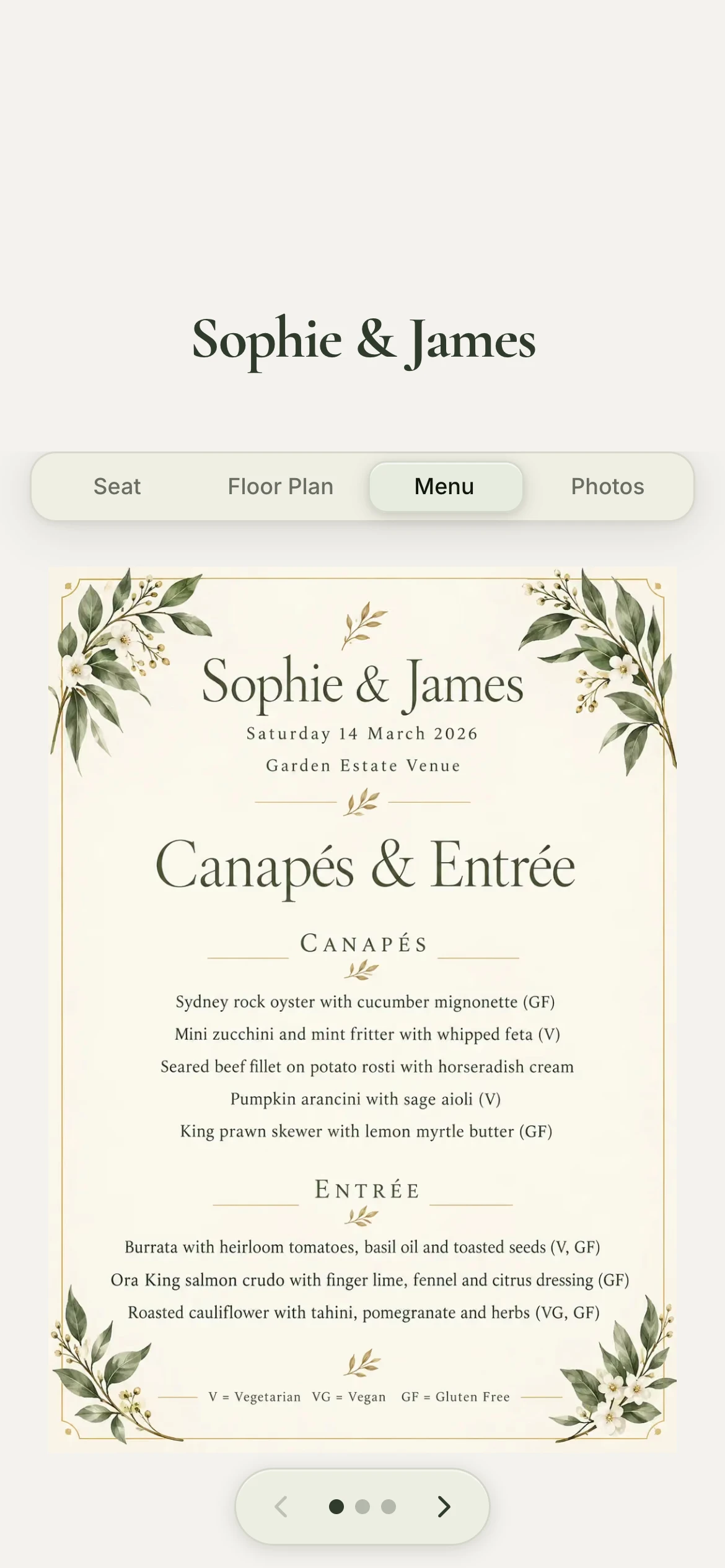
Premium Add your own sections and they all gather under one Info tab, with the menu and floor plan, so the tabs stay short on a phone. Some get opened all day, like the schedule at a conference or the map to a venue that is hard to find. Give that one its own tab and guests reach it in one tap instead of two.
In Info
In Content
Guest Info
1 sections · drag to reorderEverything guests can open. Floor Plan and Menu are built-in; drag to reorder and add custom sections below.
Changes save automatically and go live after a moment.
All changes savedOn the guest's phone
Guests tap Info, then Schedule.
Own tab
In Content
Guest Info
1 sections · drag to reorderEverything guests can open. Floor Plan and Menu are built-in; drag to reorder and add custom sections below.
Changes save automatically and go live after a moment.
All changes savedOn the guest's phone
Schedule is one tap away.
Tap it again to put it back in Info. Guests can have up to five tabs, such as Seat, Info and Photos, and you can change their order in Site Design, under Labels and order.
Put the answers on the page guests already have open
Add your menu and floor plan on Pro, or your schedule, map and your own sections on Premium and Event Bundles, and change any of it on the day.
Premium On a multi-day event, each day has its own schedule, menu, floor plan and sections, and guests see only the day they choose. Call them days, events or functions, whichever you prefer. See multi-day events.
Pro and Premium Turn off seat lookup and your live site shows only your event information: the menu and floor plan on Pro, plus your schedule, map and your own sections on Premium and Event Bundles. Useful for a conference with open seating or a cocktail party. This works on single-day events. On a multi-day event, a day needs seating and seat lookup on to appear in the day picker.
Open a real live site, the same page your guests get from the QR code. These are demo events with made-up guests.
One-day event
Find your table, then look at the floor plan, the menu and the Photos tab.
Open the live siteMulti-day event
Pick a day first: Mehendi, Sangeet or Wedding & Reception. Each day has its own tables, floor plan and menu.
Open the live siteTheme presets on every plan. Fonts, colours, renamed and reordered tabs and a QR code to match on Pro, and your logo and a background photo on Premium and Event Bundles.
Style your pageGuests upload photos and videos from the same QR code, with no app. Keep them private or open a shared gallery, then download everything at once.
Collect guest photosRun a conference, a festival, a wedding weekend or a gala dinner series as one event, with different seating and info each day.
Plan a multi-day eventNo. Menus and floor plans are JPEG, PNG or WebP images, up to 4 MB each. Save each page of a PDF as an image and upload them in order.
Up to 40 rows in a schedule, and up to 18 sections of your own on each day alongside Menu and Floor Plan. Galleries and Text + Images sections hold up to 20 pictures each.
Yes. Open in Maps opens the location in Google Maps, where guests can get directions. Add notes about parking or which entrance to use.
Yes, in the live site design settings, up to 12 characters: Venue Map, Drinks, Food. Your own sections take whatever name you give them.
Yes. Each day has its own schedule, menu, floor plan and sections.
Yes, on a single-day event. Turn off seat lookup and your live site shows only your event information: the menu and floor plan on Pro, plus your schedule, map and your own sections on Premium and Event Bundles. On a multi-day event, the day picker only lists days that have seating and seat lookup turned on.
Menu and floor plan uploads are on Pro, Premium and Event Bundles. The schedule, map and your own sections are on Premium and Event Bundles.
More questions? Contact us
Put the answers on the page your guests already have open.