One-day event
Sophie & James
Find your table, then look at the floor plan, the menu and the Photos tab.
Open the live site
Guests upload photos and videos from the Photos tab on the live site they opened from your QR code, with no app and no login, and you keep them private or open a shared gallery. Photo sharing is on Premium and Event Bundles, and you can download everything as a ZIP.
Premium Guest photo and video uploads are on Premium and Event Bundles. Compare plans
Media settings
Enable guest uploads
Show the Photos tab and allow guests to upload photos and videos.
Allow camera roll uploads
Guests can pick from their library. Turn off to require live camera only.
Allow guests to view event gallery
Guests can view and save uploaded photos and videos from the guest Photos tab. Guests cannot delete or manage media.
Camera roll uploads are on by default. Turn them off and the Photos tab only offers the camera, so guests on their phones share photos taken there and then, not last year's holiday.
On an event that runs over several days, every day's uploads go into the same gallery. See multi-day events.
The best photos of any event are spread across a hundred phones, and most of them never leave. Guests send theirs from the page they already have open, with nothing to install and no account to make.
Guest uploads are on by default on Premium and Event Bundles. In Media settings, choose whether guests can pick from their camera roll and whether they can see the shared gallery.
Guests can add a name to what they upload. Change what the field asks for (a team for a company day, a table number for a gala) or make it required.
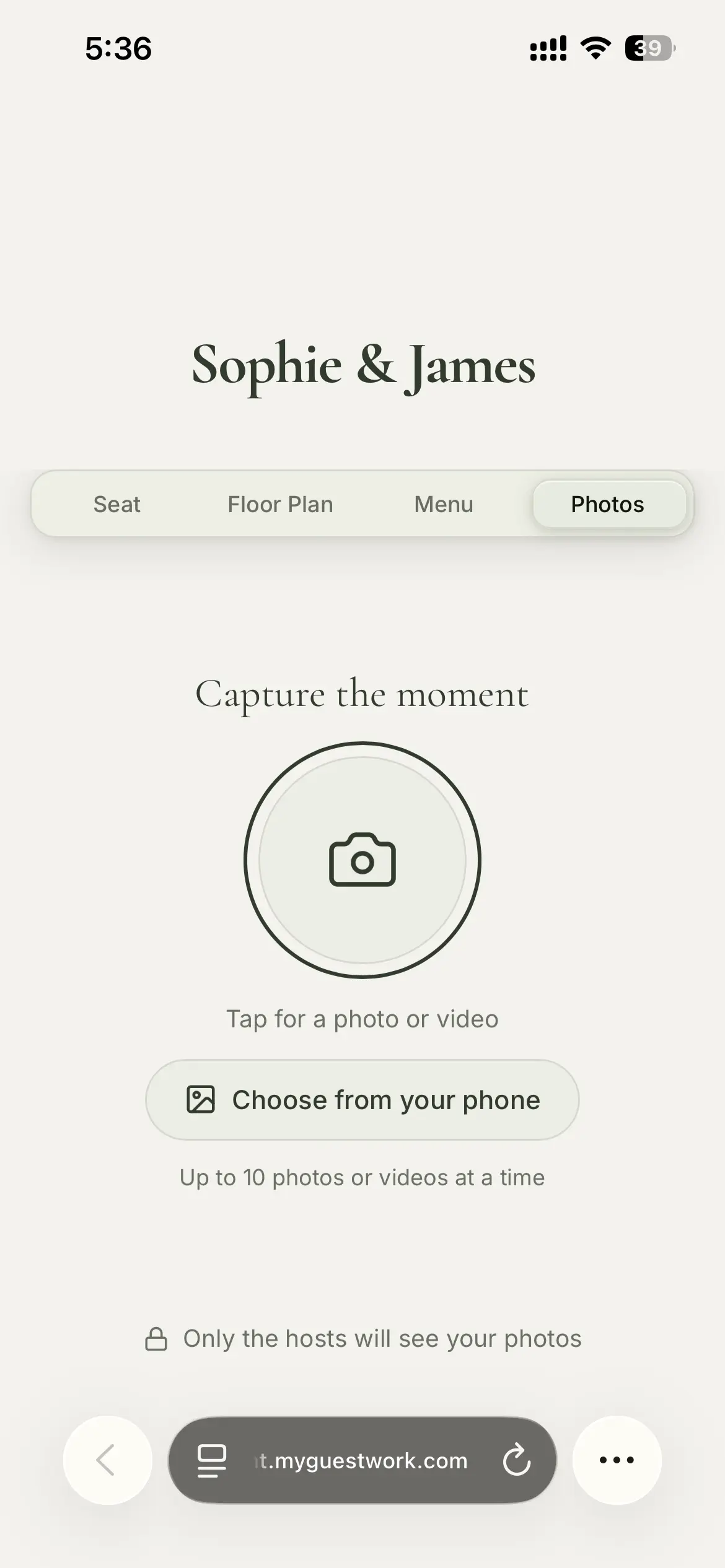
On the Photos tab, guests tap the camera button to take a photo or video, or choose from their phone, then send.
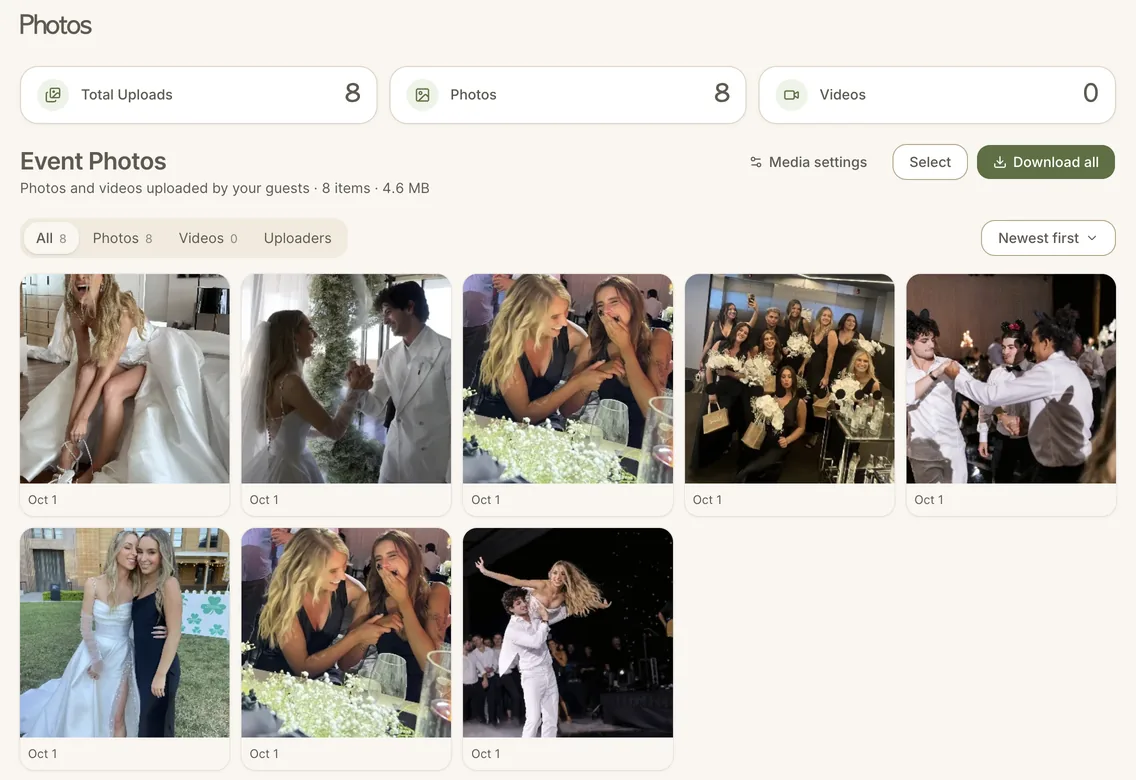
Every upload lands on your Event Photos page. Filter by photos, videos or uploader, open any item, and select any number to download as a ZIP, or up to 100 at a time to delete. Download the lot as a ZIP when the event is over.
Some hosts, like a couple using a QR code for wedding photos, want every photo for themselves first. Others want the whole room swapping pictures during the event. It is one switch in Media settings, "Allow guests to view event gallery", and it is off until you turn it on.
With the gallery open, guests can browse everyone's photos and videos and save the ones they want, up to 10 at a time. They never see who uploaded what, and cannot delete or change anything.
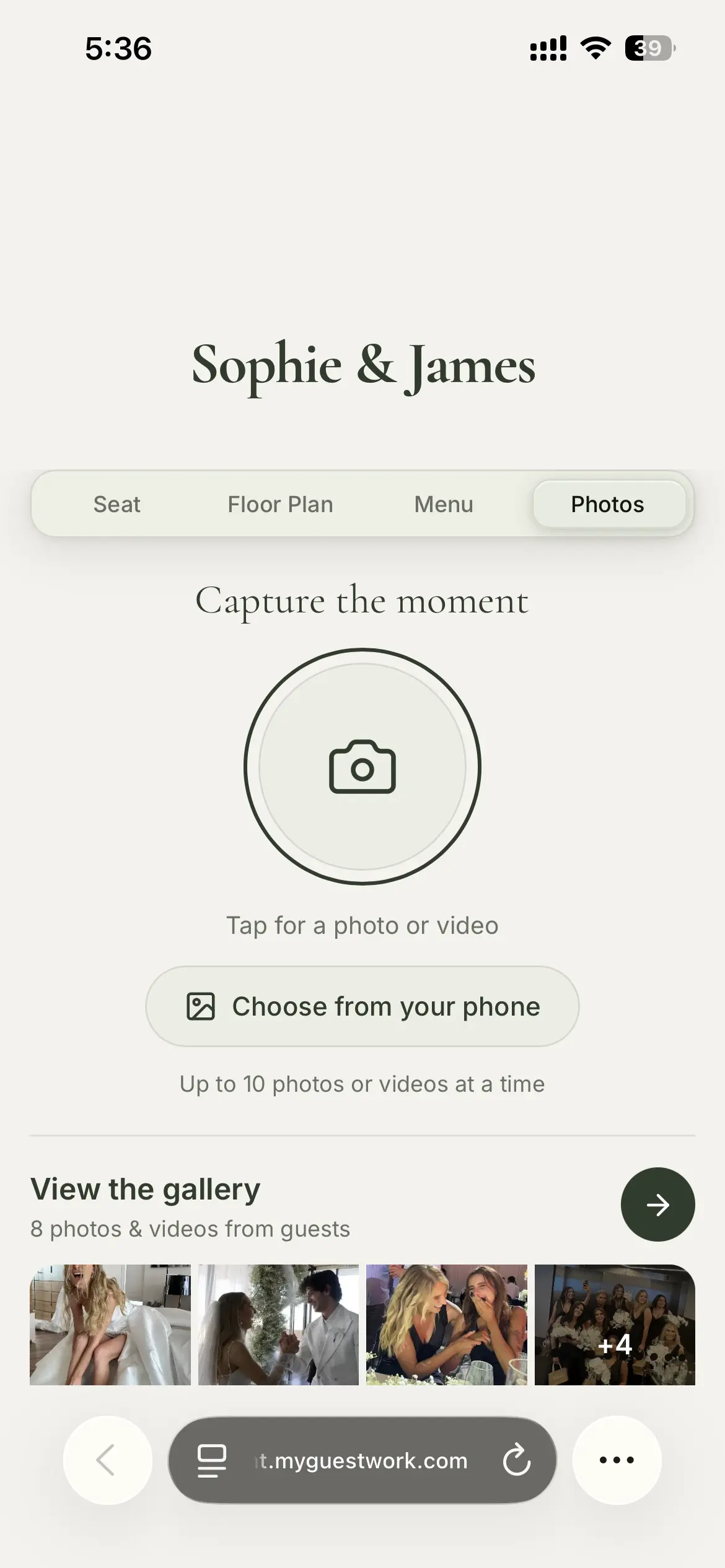
The Photos tab takes your colours and title font from your live site design. With the shared gallery on, it shows a View the gallery button with how many photos and videos guests have shared. In the gallery, guests can:
After the event, turn uploads off and leave the gallery on. The Photos tab becomes "Moments from the day", a gallery guests can keep browsing with nothing new added.
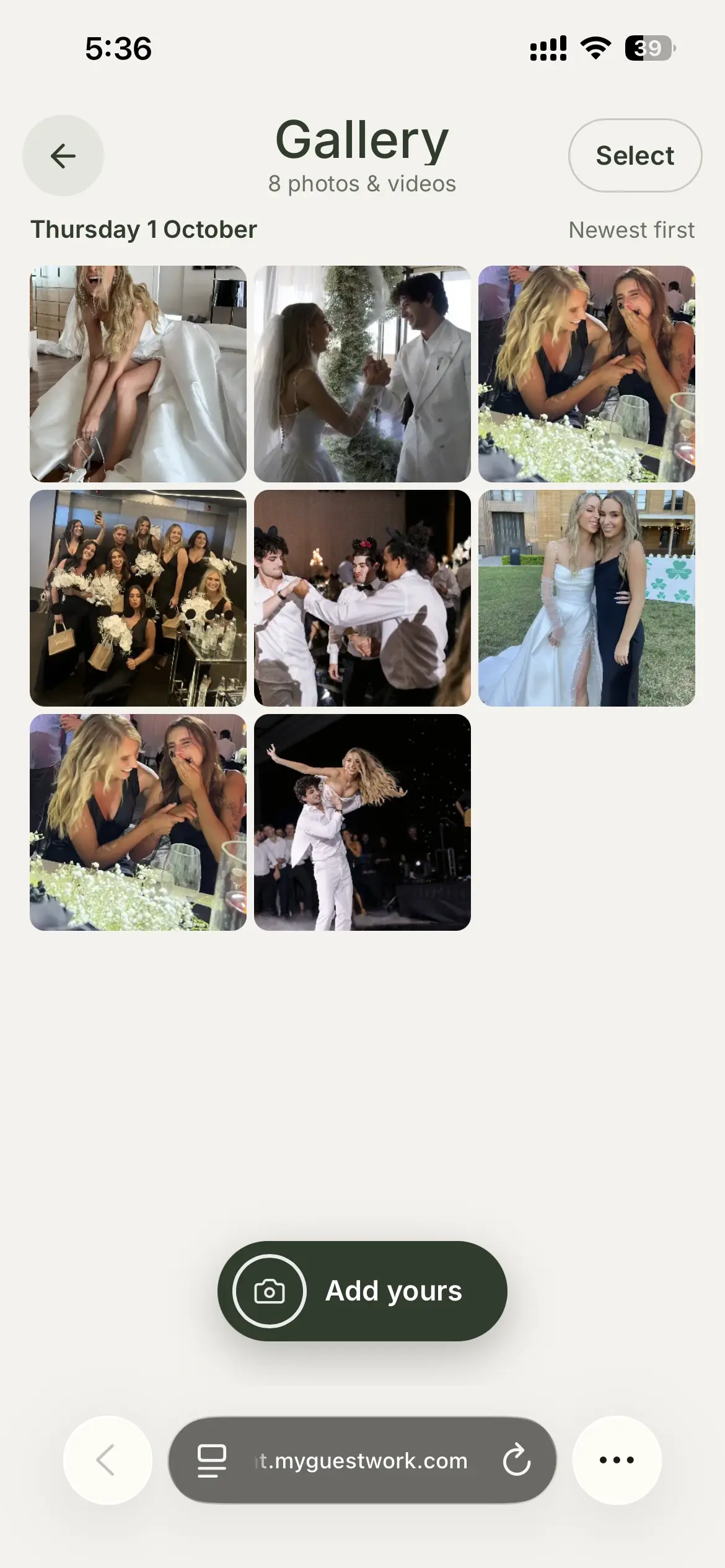
Shown with the Sophie & James demo event's real gallery.
Open a real live site and tap Photos: it is the same page your guests get from the QR code. These are demo events with made-up guests.
One-day event
Find your table, then look at the floor plan, the menu and the Photos tab.
Open the live siteMulti-day event
Pick a day first: Mehendi, Sangeet or Wedding & Reception. Each day has its own tables, floor plan and menu.
Open the live siteEvery guest's photos, from the QR code they already scanned
Guest uploads are on by default on Premium and Event Bundles. Guests share from their phone, and you download the lot as a ZIP when the event is over.
Theme presets on every plan. Fonts, colours, renamed and reordered tabs and a QR code to match on Pro, and your logo and a background photo on Premium and Event Bundles.
Style your pagePut the menu and floor plan on the page guests already have open on Pro, and add the order of the day, a map and your own sections on Premium and Event Bundles.
Add event infoOne QR code at the entrance. Guests scan it, type their name and see their table on their own phone. No app and no login.
See how it worksNo. They scan the same QR code that shows them their table, open the Photos tab and upload from their phone's browser.
Only if the host turns on the shared gallery, which is off by default. Even then, guests never see who uploaded what, and they cannot delete anything.
Photos up to 25 MB and videos up to 100 MB each, in MP4, MOV or WebM. Guests can send up to 10 files at a time, and each event holds up to 2,000 in total.
Yes. Turn off camera roll uploads and the Photos tab only offers the camera.
If they gave a name, yes, and you can filter your gallery by uploader.
Yes, for as long as uploads are switched on. Turn them off in Media settings to close uploads, and if the shared gallery stays on, the Photos tab becomes a gallery of the event that guests can still browse.
Choose Download all on your Event Photos page for a ZIP of every photo and video. Large galleries may come down in more than one part, depending on your browser.
Premium and Event Bundles only: Free and Pro events do not have the Photos tab.
More questions? Contact us
One QR code for the seating, the details and the photos.